About this launcher download
TWOW.PARTY Launcher 1.0.7 · ZIP · Windows x64
Launcher 1.0.7 is intended for WoW Forever 1.60.1.70450, the build required by this server.
Client pre-download release. Full verification of public access to the game world on this build is still pending.
Portable launcher for Windows 10/11 x64 with .NET Framework 4.8. Extract the ZIP; there is no installer. This small ZIP contains the launcher only. Update the ZIP version manually by downloading a new published release.
Download launcher 1.0.7 ZIP — mirror
If the main download does not start, try this separate mirror. It serves the same launcher ZIP with the SHA-256 shown in the file details.
Choose Install client in the launcher to download the game from TWOW.PARTY into a new folder. Downloading starts only after you confirm the folder and languages. You can pause and resume; downloaded parts and completed files are checked by SHA-256. Existing game installations are not merged or overwritten.
In the launcher, Download source offers Automatic, Mirror and Primary. Automatic switches to the other source if a transfer fails. Select Mirror to download directly from download.twow.party. Keep the same folder and game languages when resuming; each downloaded part is verified.
The launcher shows whether it is preparing files, connecting or downloading, together with the source and public file name. If downloading stops, it displays an error code for the connection, certificate, HTTP response, disk space, folder or integrity check. Use Open log or Copy diagnostics to inspect or share the technical result.
Choose one or more game languages: German, English, Spanish (Spain or Latin America), French, Korean, Portuguese (Brazil), Russian, Chinese (Simplified or Traditional). Text and speech are included for each selected language. Choose a primary game language; the launcher interface has a separate Russian, Ukrainian or English setting.
On Play, the embedded third-party Forever Launcher 2.3.10 engine starts the selected WowB.exe and applies the server’s public key in the running game’s memory. Keep the launcher open while playing.
TWOW.Party.Launcher.exe has no Authenticode publisher signature. Windows SmartScreen may display an unknown-publisher warning. The launcher does not install certificates or change the Windows hosts file.
Windows 10/11 with .NET Framework 4.8. The small ZIP contains only the launcher. Download the game through the launcher.
No certificate installation or hosts edits are needed. The launcher checks the server's public HTTPS certificate.
Files and removal
A downloaded client gets its own folder and language configuration. Playing uses a separate WTF\ForeverLauncher.wtf, preserves an existing WTF\Config.wtf, installs Interface\AddOns\ForeverRecap and writes Logs\launcher.log. Folder, interface language, selected game languages and primary game language are stored in %LOCALAPPDATA%\TWOW.Party\settings.json. The engine language preference is %APPDATA%\ForeverLauncher\gamelang.txt; a pre-existing file is backed up as gamelang.txt.twow-backup before changing it.
Download diagnostics are stored locally in %LOCALAPPDATA%\TWOW.Party\logs with limited file size and rotation. The log includes times, stages, known download hosts, public file hashes and error codes; it excludes passwords, email addresses and your local installation path. Copy diagnostics copies a limited recent log excerpt. These download logs can be removed after closing the launcher.
Close the game and fully exit the launcher, including its tray icon, before removing its extracted folder. The separately downloaded game client remains; remove that installation folder separately if no longer needed, preserving your personal settings first. Optionally remove the launcher’s settings.json. Keep existing .twow-backup files; restore a pre-existing ForeverLauncher.wtf or gamelang.txt from its backup when needed.
Upstream compatibility engine: Forever Launcher 2.3.10
ZIP SHA-25611BE0E67FDDE306AB1AA97FA742D26217A7F5DD36D9BAD2C245D7C07F6B4E28C
01Check Windows and prepare the client
Use Windows 10 or Windows 11 x64 with .NET Framework 4.8. The required client is WoW Forever 1.60.1.70450. You can download it from TWOW.PARTY through the launcher or use an existing installation with _classic_beta_ containing WowB.exe.
The complete build number matters. A similarly named folder or a different game build is not a substitute for the required client. This guide covers the stated Windows setup; support for other operating systems has not been confirmed.
02Create your game account
Open Create account on the website. Enter your email address, choose a unique password and repeat it in the confirmation field. The form accepts a password of 12–64 allowed characters containing a Latin letter and a number, without spaces. Read the privacy notice before submitting.
Wait for the account-creation result. If the request is still being processed, keep the window open and use the available status controls rather than submitting another registration. A successful result means your Trinity game account is ready. You will use this email and password in the game; reading the website and its news does not require a website login.
03Download and extract the launcher
Use Download launcher on this page, then extract the ZIP to a folder on your gaming PC. Open TWOW.Party.Launcher.exe from the extracted files. Keep the files together and use the current download supplied by this website.
The launcher connects your existing game installation to play.twow.party. This connection method does not require editing the Windows hosts file or manually installing a certificate. The launcher checks the server’s public HTTPS certificate.
04Download the game client or use your installation
After extracting and opening the launcher, choose Install client. Choose a new installation folder, one or more game languages and a primary game language, then confirm the download from TWOW.PARTY. Existing game installations are kept separate. The window shows the download size for your selection.
Available game languages: German (deDE), English (enUS), Spanish for Spain (esES) or Latin America (esMX), French (frFR), Korean (koKR), Brazilian Portuguese (ptBR), Russian (ruRU), Simplified Chinese (zhCN) and Traditional Chinese (zhTW). Text and speech are downloaded for every selected language. The primary language controls which one the game uses; the launcher interface is selected separately in Russian, Ukrainian or English.
You can pause and resume the download; parts and completed files are checked by SHA-256. Wait until installation finishes. The launcher then selects the downloaded client automatically. If you already have the required build, choose the existing-folder option and select _classic_beta_ containing WowB.exe instead.
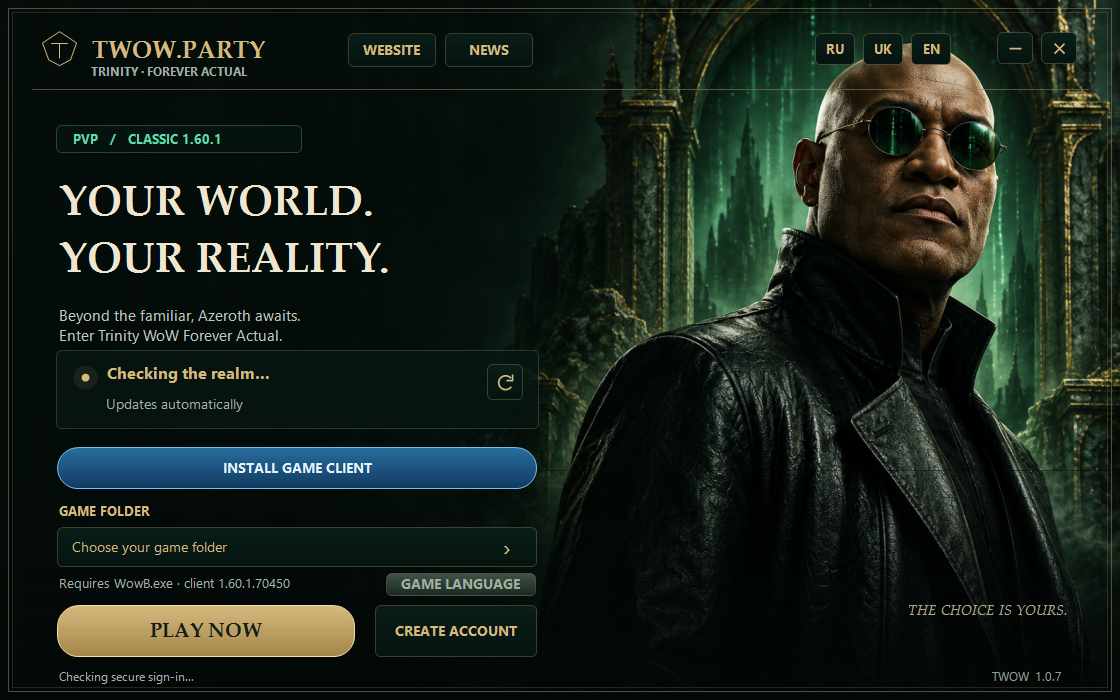
05Choose the game folder and enter the world
Check the selected _classic_beta_ folder containing WowB.exe. For a downloaded client, choose the primary language from the installed languages if you want to change it, then choose Play now. When the game opens, sign in with your TWOW.PARTY account email and password and select the PvP realm.
Leave the launcher running while you play. The website address is twow.party; the game connection address is play.twow.party. Use the launcher workflow rather than applying instructions for a different project.
06If you cannot connect
Check the world-state panel and the time of its last update. Then confirm the client build, the selected folder and the presence of WowB.exe. Make sure you extracted the archive and kept the launcher open.
For a registration error, read the message next to the form: an existing email, a password-format issue and a temporary service failure require different responses. If the connection failed or a limit was reached, follow the form’s retry guidance. Never post your password in a public message. The FAQ explains the most common setup questions.